

Actions called with conditions
Agilitest allows you to call actions known as “conditional”, meaning that the evaluation of a condition determines whether or not this action is called.
All conditions in Agilitest are interpreted as JavaScript code. For the action to execute, the expression entered must return the value true.
How to create a condition
First, to add a condition to your action you need to open a script and select the action on which you want to add a condition.
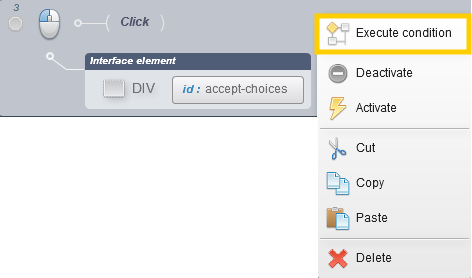
Do a right click and select “execute condition”
All conditions interpret JavaScript code.
For an action with a condition to be executed, the result of the entered code must return “true”.
Characters strings must be written in between double quotes or single quotes to be executed.
Be sure to check the selected option:
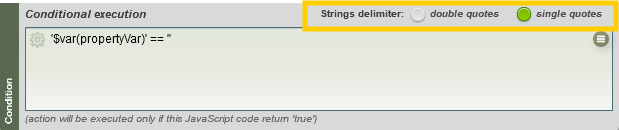
If the condition is a numeric type one, there is no need to use double quotes or single quotes.
Examples:
1 == 1
1 < 10
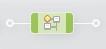
A true condition appears green in the action.
A false / not filled condition appears red in the action.
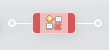
To suppress a condition in an action, you simply need to click on the cross of the icon.
Examples of conditions
You execute conditions with characters strings, numeric types and variables as well.
You can retrieve a variable from the special value menu.
Example 1 - Subscript call under conditions:
In this example, we choose to call a subscript depending on whether the variable is equal to 0 or not.
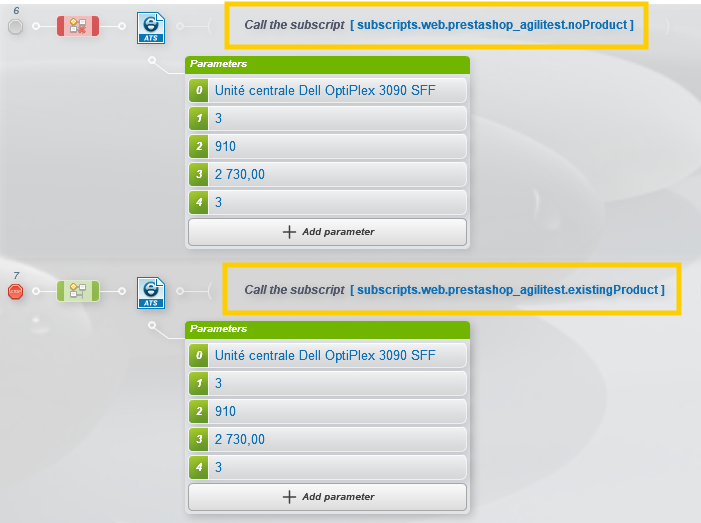
The condition of the first action (line 6) is to execute the subscript if the variable is equal to 0 with the entry: '$var(product_exists)' == '0'
The condition of the second action (line 7) is to execute the subscript if the variable is nott equal to 0 with the entry: '$var(product_exists)' != '0'
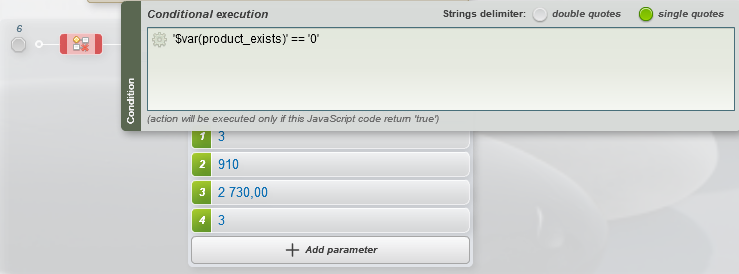
Since the variable does not equal 0, the condition is not filled and the subscript of this action won’t be called
Example 2 - To Compare a retrieved value
In this example, we have retrieved a property value in the script and we want to compare this value with the property variable.

Example 3 - Browser’ selection
In this example, we want to determine which browser is going to start depending on whether the execution is done from its test machine or remotely.
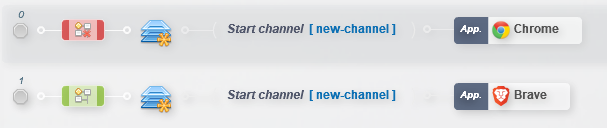
To do that, click on the special values button in the enter text section.
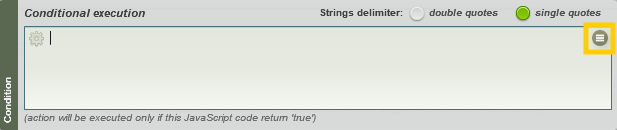
Then select ATS script values > Project path
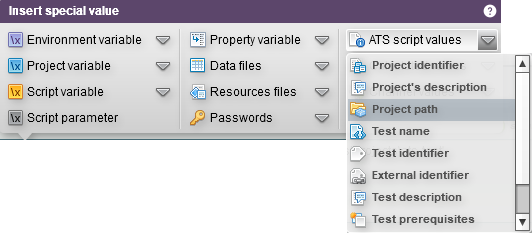
Then, enter the project’s path in plain text which corresponds, or not depending on the condition, to the project’s path variable.

Here, the condition is executed if the project’s path variable does not correspond ( != ) to the value of the project path.
Example 4 - Regular expressions with javascript
In this example, we want the action to be executed only if the postal code is true (contains only 5 numbers).
In the field for your right-click condition, you can type:
/^\d{5}$/.test('$var(code_postal)')
IF $var(code_postal) equals "75001", the JavaScript condition is true 🟢 -> The action is executed.
IF $var(code_postal) equals "7500AB", lthe condition is false 🔴 -> the action is ignored.


