Executions management - TestNG
It is possible to use a compiled Java runtime outside of the Agilitest editor's specific editing and execution mode. This compiled Java runtime is faster and is intended for use with a single test or a group of tests within a project. TestNG is a framework designed to enable the execution of these tests in Java.
TestNG executions, also known as “Playlists” or “Suites,” are runs created in Agilitest from a set of scripts and parameters.
These test runs can be executed by Agilitest, but they can also be exported to TestNG-compatible environments that can replay the tests without requiring complex configurations, such as Jenkins and its jobs.
This build mode can be found on the execution management window.
How to manage project executions
You can access the job management feature from the sidebar.
Click the “Executions management” menu or use the keyboard shortcut Alt+x
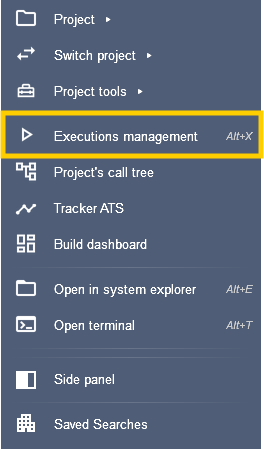
Agilitest will open a window with different menus:
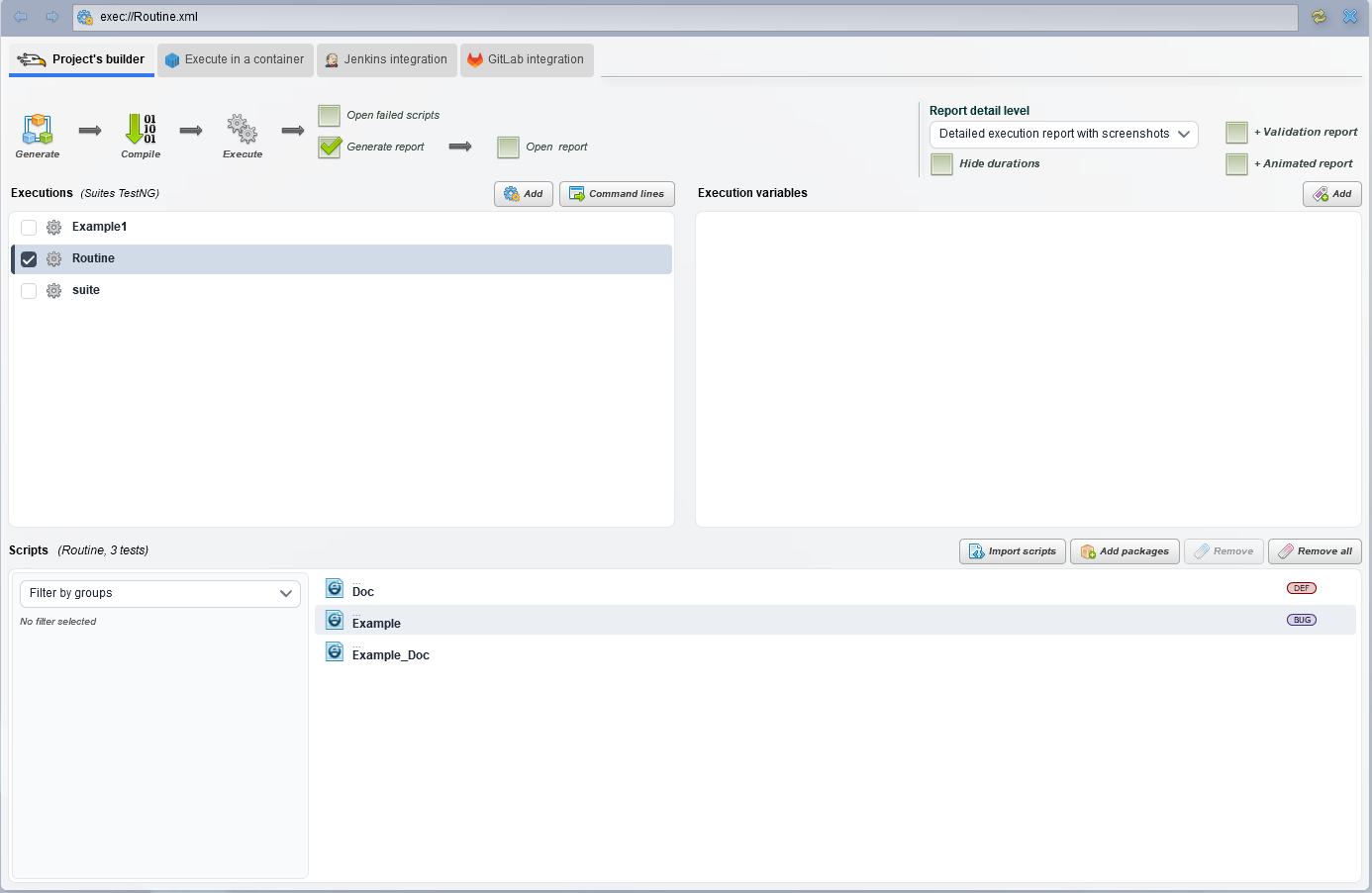
- Project’s builder
The Project Builder allows you to configure, generate, and run your tests.
Select the execution mode for your playlists using the following menus: Agilitest Builder, Containers, Jenkins Integration, and GitLab Integration

- Report detail level
Specify the level of detail for the reports, as well as whether to generate a validation report and an animated report.
The reporting levels are defined as follows:
- Execution report
- Detailed execution report
- Detailed execution report with screenshots
- Executions
This menu allows you to configure TestNG runs, known as Playlists or Suites, along with their variables and scripts.
Click on the name of a Playlist to configure it.
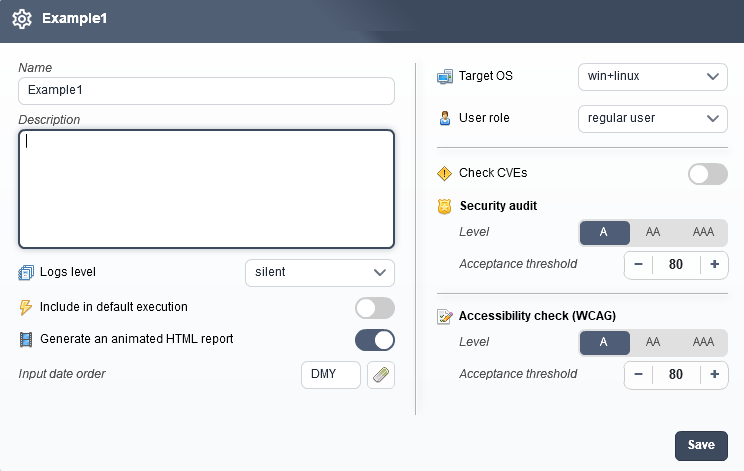
From this window, you can:
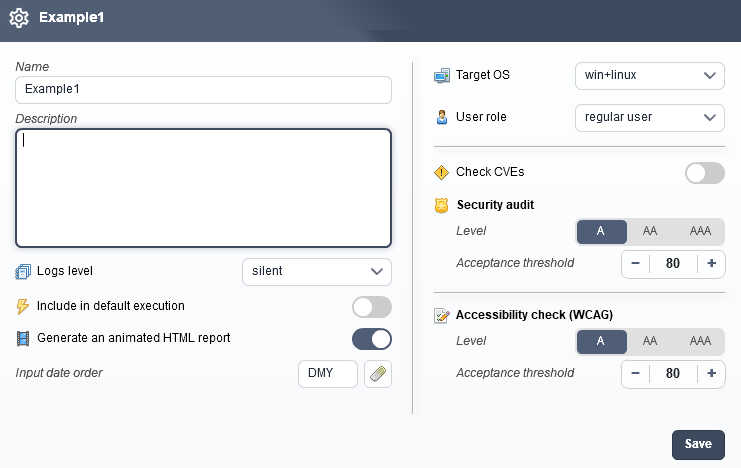
- Change the name and add a description to your Playlist
- Define the logs level (silent, error, info, warning, all)
- Choose to include it in the default execution
- Generate an interactive HTML report
- Change the date format
- Choose the target OS and the user role
- Define security settings
- Define accessibility check (WCAG)
For more information on security settings and RGAA accessibility, please refer to the Check documentation
Duplicate Playlists
Right-click on an execution Playlist, then click “Duplicate” to create an exact copy of the file.
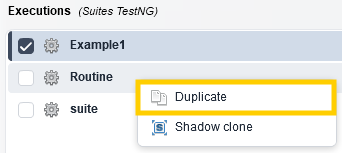
The new playlist is an independent copy of the original (same scripts, same variables, same order) and can be freely modified, without any connection to the source code.
Example:
Duplicate a Playlist to build on an existing campaign and take it in a different direction.
Clone Shadow
Do a right click on a Playlist execution then click on “Shadow clone”
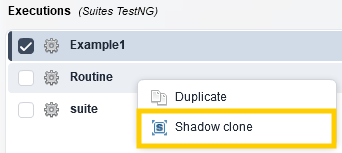
This allows you to create a Shadow Playlist that continuously replicates the test list from its reference playlist.
The goal is to make it much easier to maintain your test plans by avoiding duplicate configurations.
If you add or remove a test script in the “Master” (the original Suite), all clones are automatically updated at runtime without any action on your part.
However, the Shadow clone has its own sequence variables, which allows you to replay the exact same campaign in a different context (test environment, alternative dataset, etc.) without having to manage two parallel lists.
Examples:
Execute exactly the same tests on different browsers, in different environments such as staging or production, or with different levels of accessibility.
- Some more examples:
Validation environment → Pre-production
Validation environment → Integration
Pre-production → Performance pre-production
Pre-production → Production (less common)
With datasets that are:
- larger in size
- adapted and anonymized in accordance with GDPR
- in a language that needs to be tested
🔶 Warning
It is not possible to duplicate a Shadow clone, as the chain is limited to a single level
- Scripts
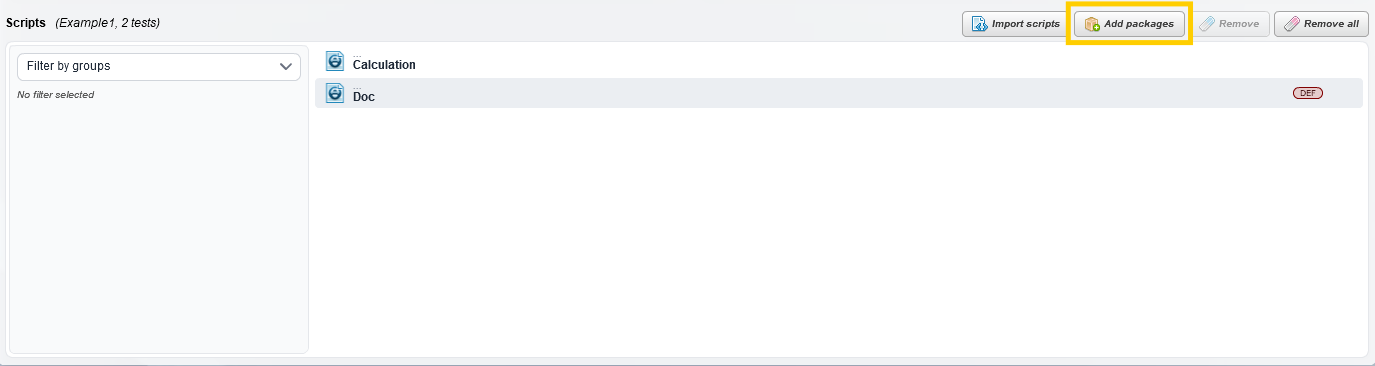
Once you've selected your playlist, add or remove the scripts of your choice. From this interface, you can also filter your scripts using groups.
How to create an execution
An execution refers to a subset of tests within a project, which is a set of scripts, that you can execute all at once.
To define an execution, click on the “Add” button in the executions tab.
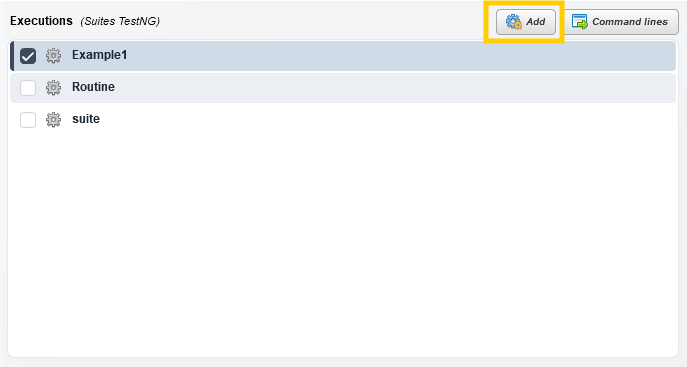
As mentioned above, a playlist must consist of multiple scripts.
To add scripts, select your playlist and then click “Import scripts”.
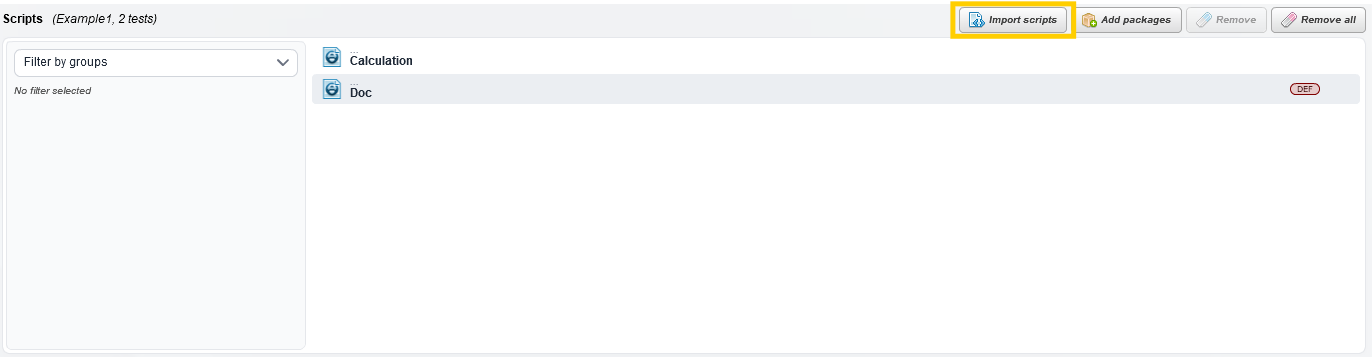
You can also drag and drop scripts from the project explorer.
The “Packages” tab displays all the directories in your project.
Cela vous permet de définir, pour chaque répertoire, si les fichiers ATS qu'il contient doivent être inclus ou exclus de la sélection.
This allows you to specify, for each directory, whether the ATS files it contains should be included or excluded from the selection.
Specify which directories should be used to retrieve the scripts, and which ones should not.
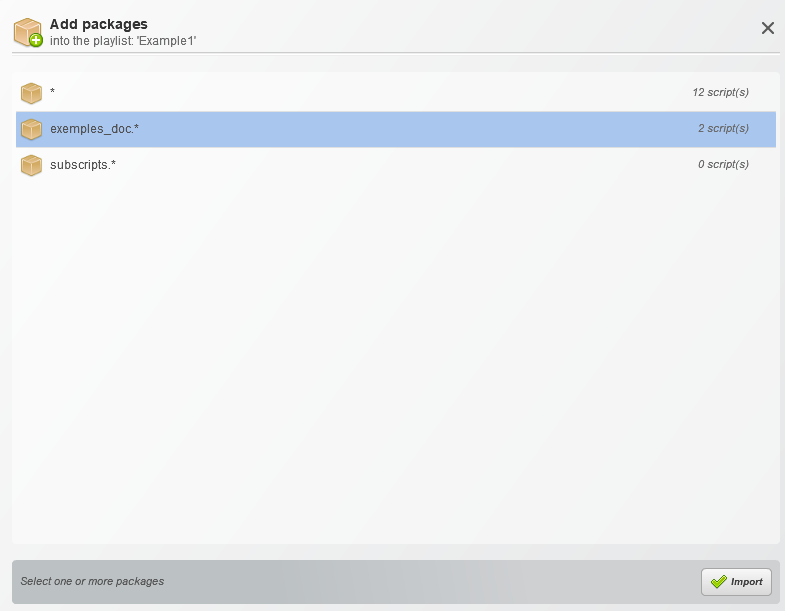
The files do not need to have been added to the Script tab.
Execution parameters
Once your execution is created, you can assign it settings that affect the level of detail in the generated reports.
Each Playlist has its own parameters.
To configure these parameters, click on the name of your execution Playlist.
A set of options allows you to configure the quality of the reports generated when the execution is launched:
More details above ↑
Generate reports
Check the “Generate report” box to generate them at the end of the execution.
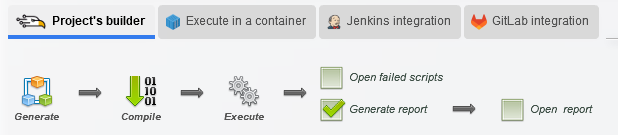
If you check the “Generate report” box, your report will be generated at the end of the execution, and it can also be opened automatically if you check the following option.
Once this box is checked, you can specify the level of detail you would like in the report.
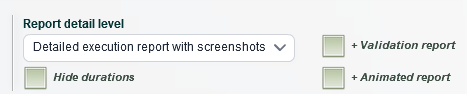
To learn more about reports, you can check the documentation.
Select groups
Test groups allow you to filter the scripts you run based on the groups they are associated with.
Group management is accessible from the sidebar and allows you to create, manage, and delete groups.
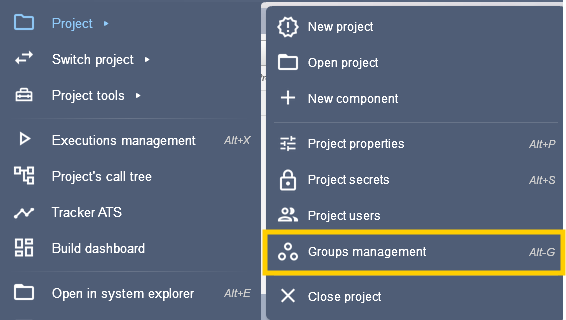
Each project has its own group management, and each execution suite has its own filter configuration.
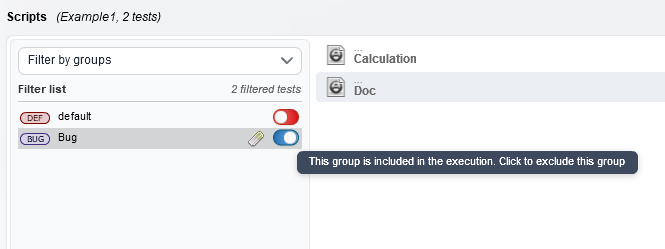
There are two ways to filter groups:
- By including: All scripts from this group are executed.
- By excluding: All scripts from this group are not executed
Execution variables
Execution variables are variables that you define in the execution management menu and that will appear as environment variables in all tests belonging to the same project.
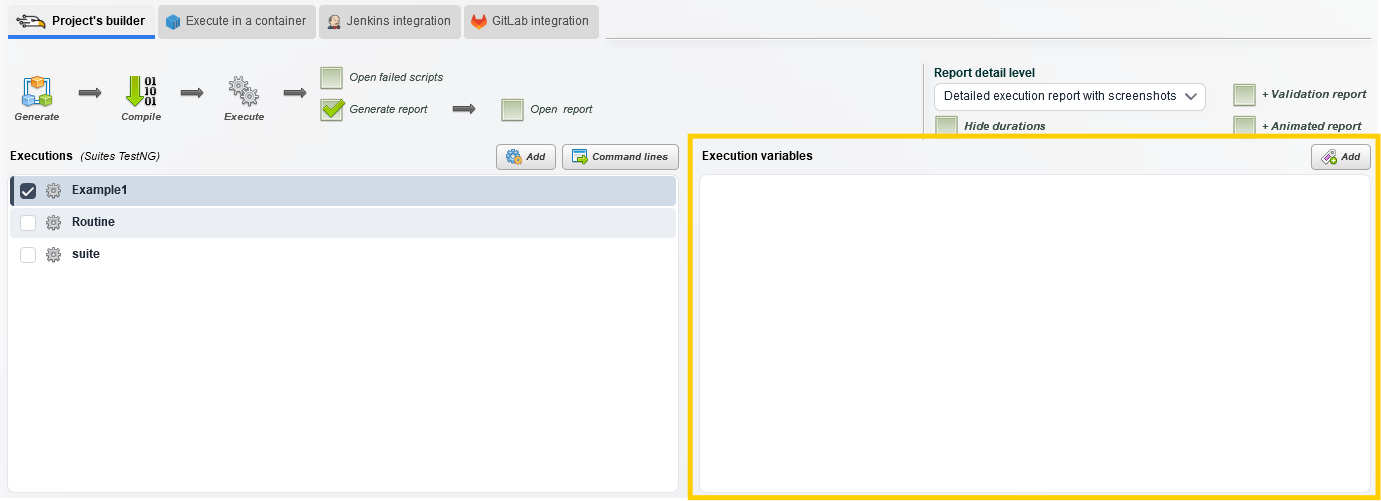
Retrieve your environment variables in the special value menu.
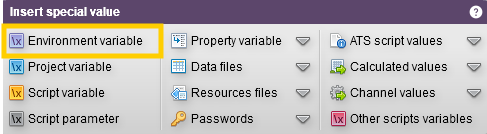
Or with the command: $env(var_name)
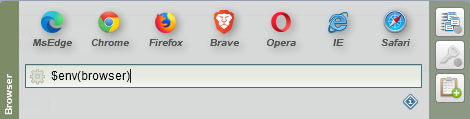
Environment variables allow you to manage different runtime environments, all of which use the same test suite.
Environment variables can be overridden at runtime, either on the command line or through the system used to trigger the runs (Jenkins, GitLab CI, Azure DevOps).
Launch an execution with Agilitest
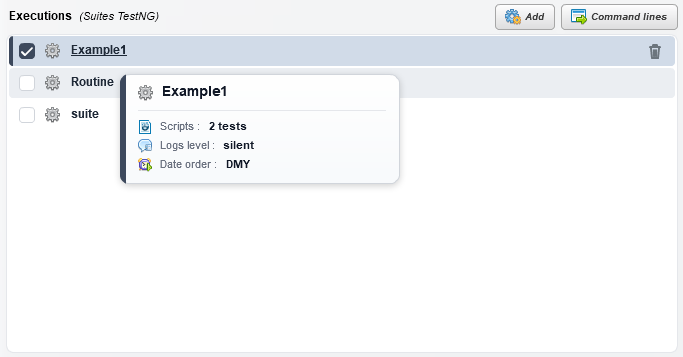
When you want to execute a Playlist make sure it is selected, as indicated by the checkmark in the row for your runs.
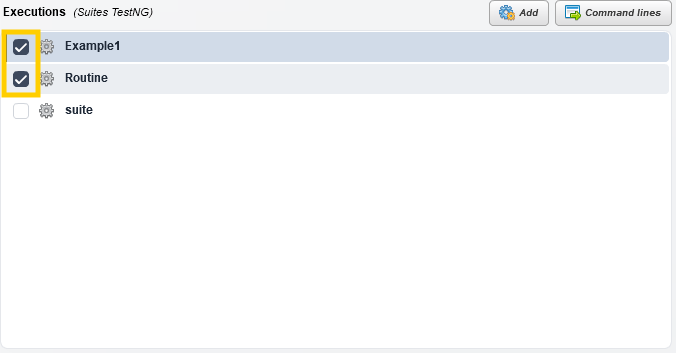
You can select multiple Playlists to execute one after another.
To start the execution of your playlist, follow the steps below in order:
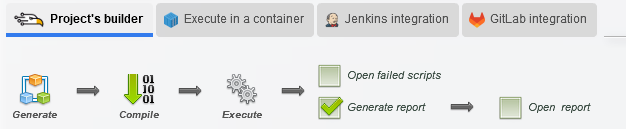
- Generate: This function generate the Java files corresponding to the selected ATS tests
- Compile: This function compile the Java files
- Execute: Agilitest opens a console and replay all the selected tests in the execution.
By checking the “Open failed scripts” box all scripts that failed will be open when the execution is complete.
Note:
It is also possible to execute a script using command-line arguments without taking the playlist settings into account which is a standalone execution.
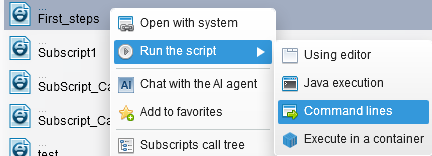
In the project explorer, right-click on a script > Run the script > Command line