

Mobile Explorer
Introduction
Mobile test management in Agilitest is based on a “Plug & Play” approach. This architecture relies on the Mobile Explorer tool and the open-source ATS-core engine, enabling smoother, visual automation that is compatible with continuous integration (CI/CD) environments.
Architecture and Prerequisites: ATS Mobile Station
The central hub for the connection between the workstation and the terminals is ATS Mobile Station.
ATS Mobile Station is a standalone component (Windows/macOS) that manages communication with physical devices and emulators. Detection is automatic (USB/WiFi) once ATS drivers are installed on the terminal. With the ability to specify multiple instances (IP:Port) to manage fleets of remote terminals.
💡 Tip
For optimal performance, make sure that the network ports used by the ATS Mobile Station are open in your firewall and that “USB Debugging” mode is enabled on Android devices
Use guide: Mobile Explorer
Mobile Explorer replaces the manual entry of complex parameters with an intuitive visual interface.
Tool access
Two paths can be used to open Mobile Explorer:
- From a script
In Agilitest, add a Start channel action > Mobile
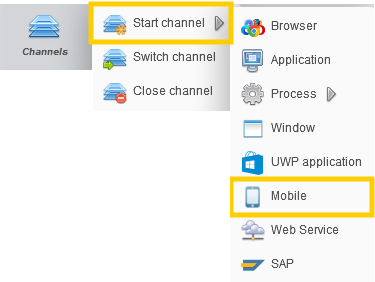
Then, click on the Mobile button > Settings

- From the editor side bar
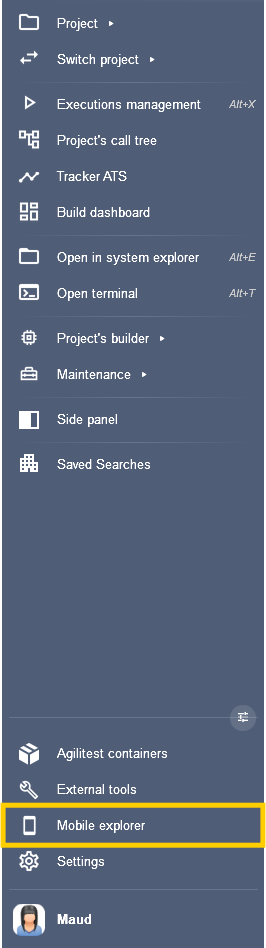
Installation
To install Mobile Station, go to the settings in the Mobile explorer window.
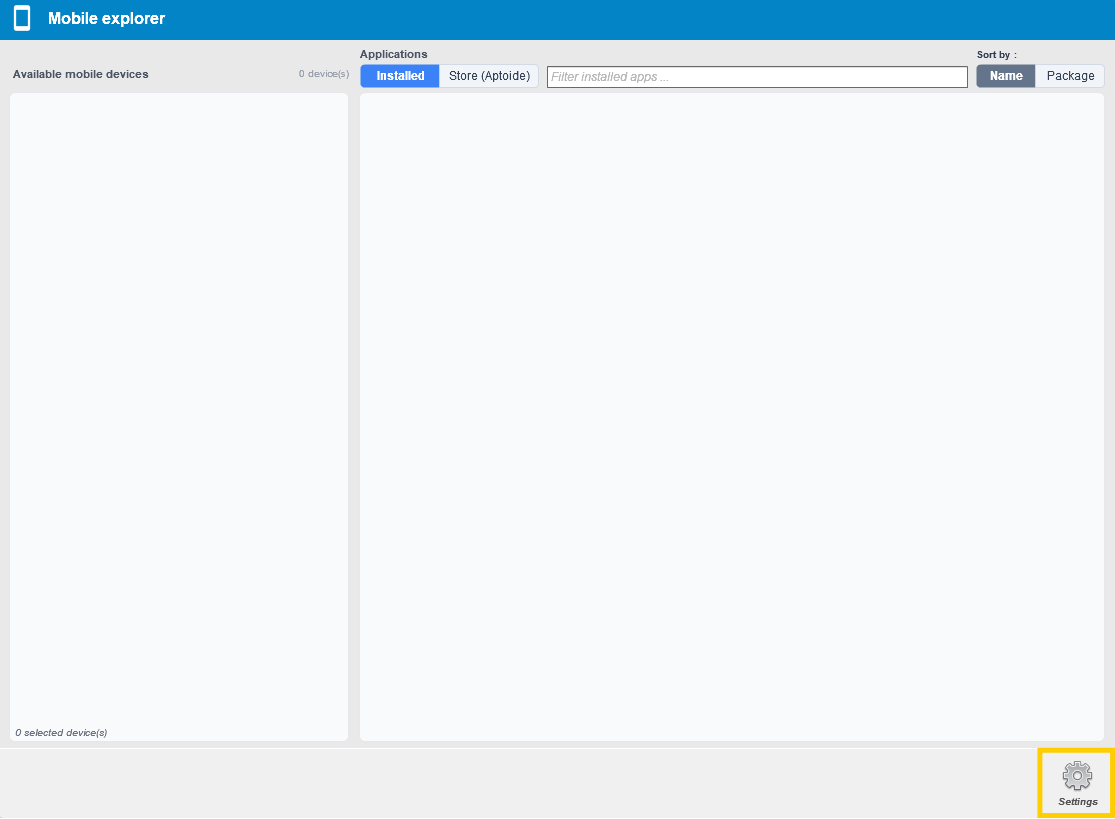
Copy and paste the command line.
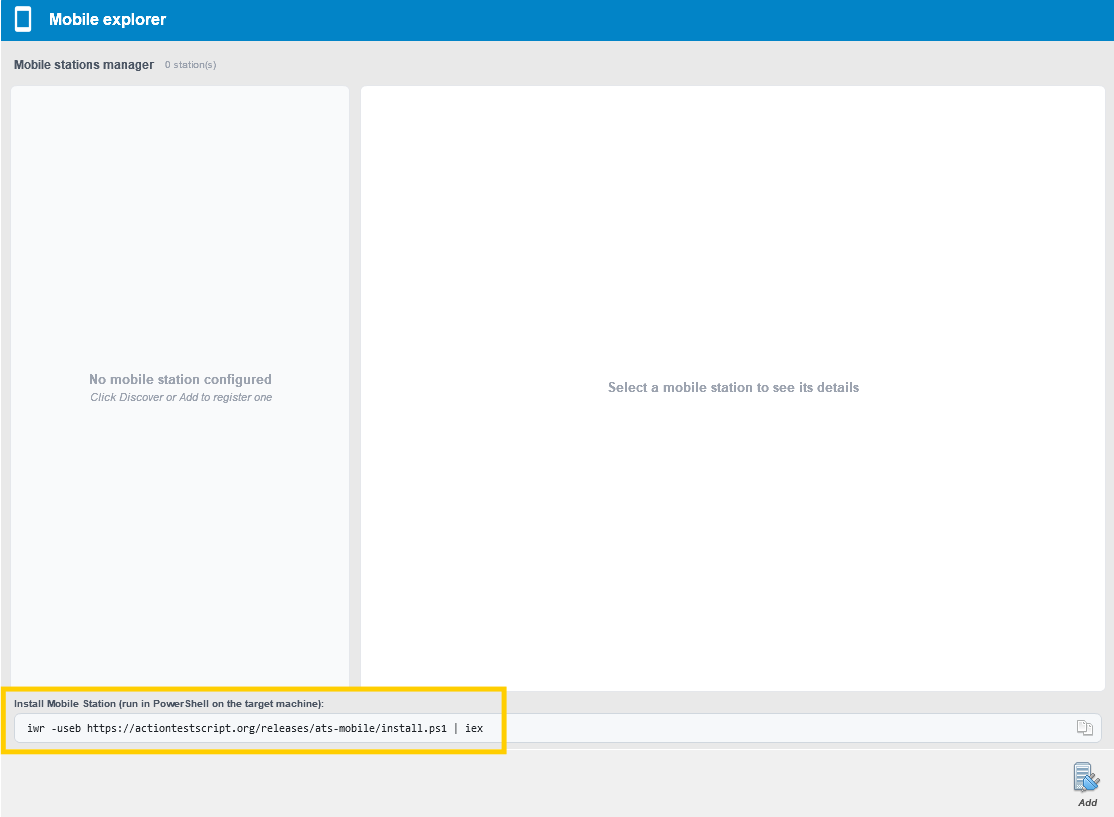
Then, use the command line in PowerShell.
This will open a Mobile Station console in your browser.
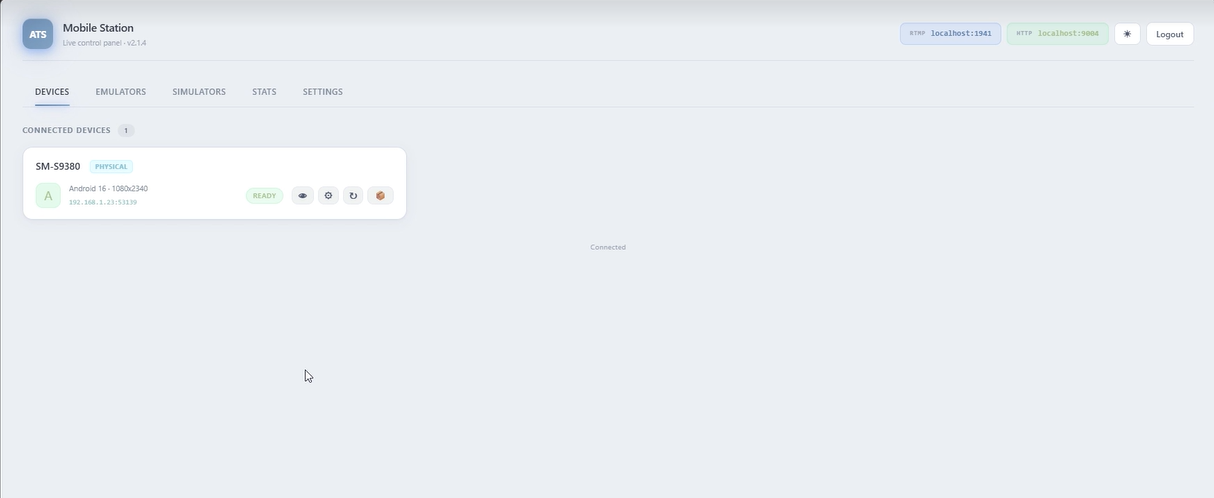
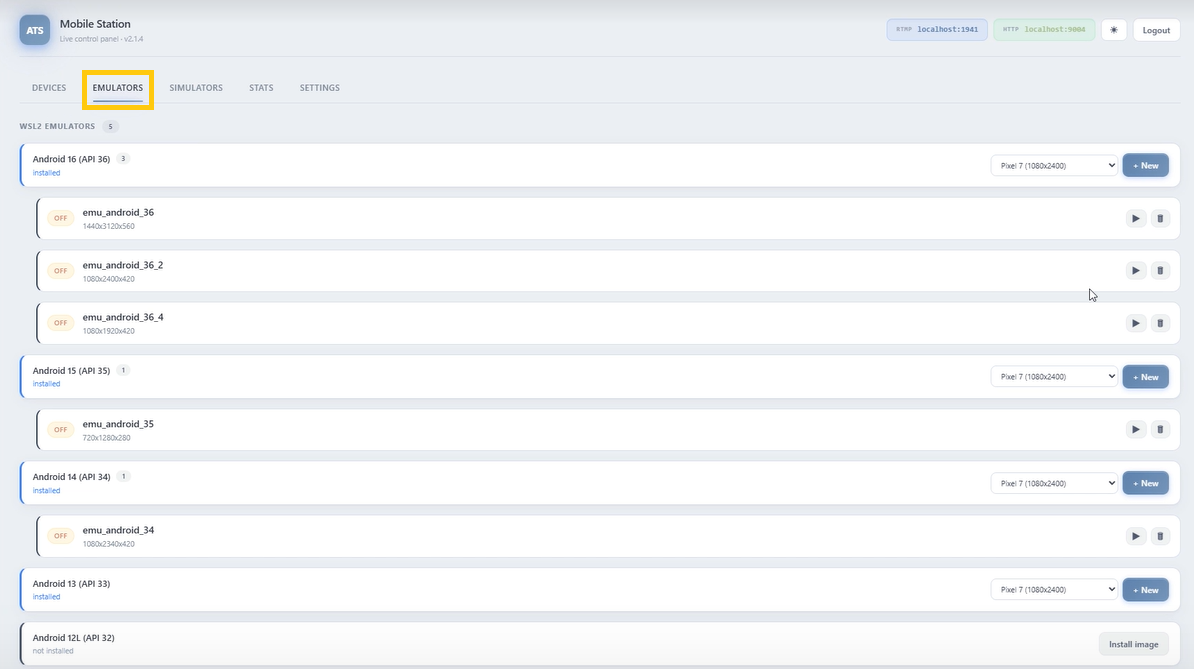
You can access various emulators from the emulator menu on this page.
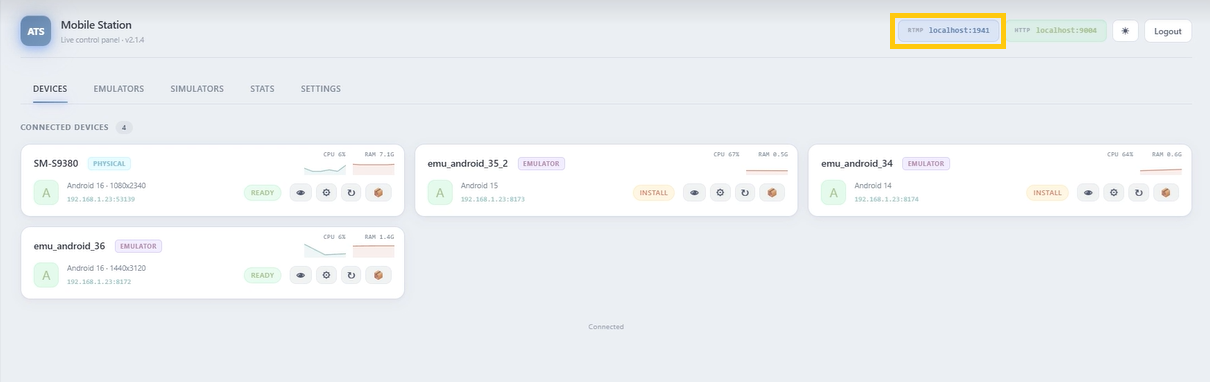
To configure Mobile Station with Agilitest:
Copy the local host
Then paste it in the settings in the Mobile explorer window in Agilitest.

Mobile Explorer
Once Mobile Station is connected with Agilitest, you have access to information from the Mobile Station web page directly in the editor.
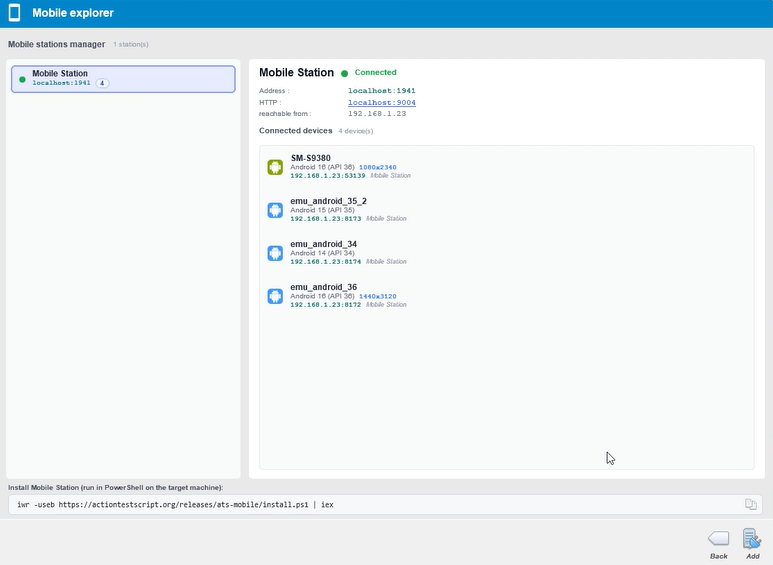
The Mobile explorer window displays all the detected devices by Mobile Station. The tool lists all of the installed applications.
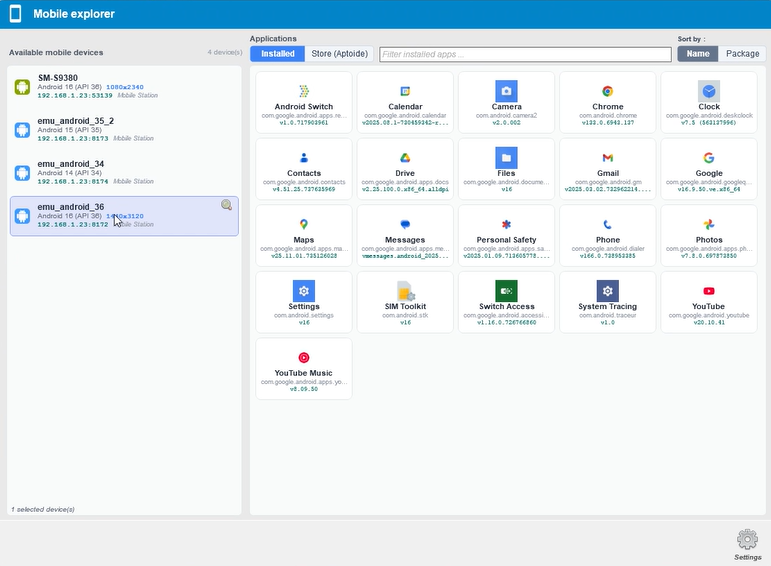
By selecting an app on the list, Agilitest automatically retrieves the Package Name and the Activity required, which sets up the channel without text input errors.
You can also download applications from the Mobile explorer window by using the stores (iTunes on iOS, Aptoide on Android).
Click on the Store button and enter the app you want to download.
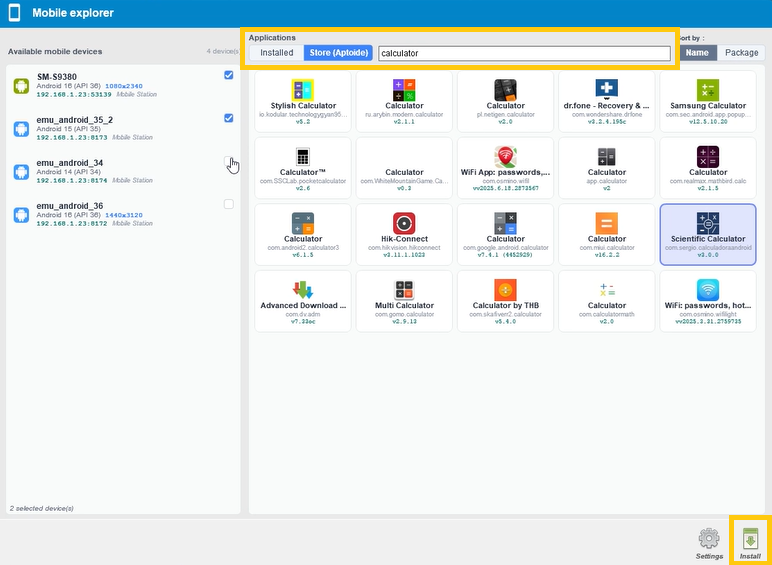
You can select the app of your choice from the list of available apps and choose which connected devices you want to install it on.
Mobile channel and capture
Open a Mobile channel
In Agilitest, add a Start channel action > Mobile
Then, click on the "Mobile" button
The “Mobile App” window is Agilitest's interactive dashboard that allows you to configure the launch of a test on a smartphone or tablet.
For Mobile Station, the device serves merely as a runtime host for the target application.
You can quickly find your app among the system apps or by using the search bar.
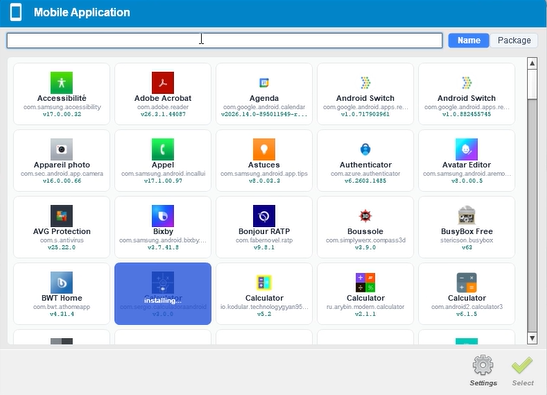
The goal is to create portable tests. If you hard-code a test script to the unique ID (UDID) of a specific phone, your test will fail as soon as that phone is disconnected or replaced.
Mobile Station maintains a lookup table. Its selection algorithm generally works as follows:
- App Check: Is the app (Bundle ID on iOS or Package Name on Android) installed on any of the active devices?
- Availability: If multiple phones have the app, which one is available?
- Priority: It selects the first device that meets the criteria.
If you absolutely need to target a specific mobile device (for example, because you're testing a feature specific to a particular Android version or screen size), you must pass additional parameters when opening the channel:
In the channel settings, you can specify a deviceId or specific characteristics.
Without these details, ATS considers any device capable of running the app to be a valid candidate.
Mobile Capture
The capture tool displays a real-time view of the mobile screen. You can select elements (buttons, fields, lists) directly from this live view to create your actions.
Keyboard events can be sent globally to the channel or the root element, making it easier to manage forms and special keys on the mobile system.
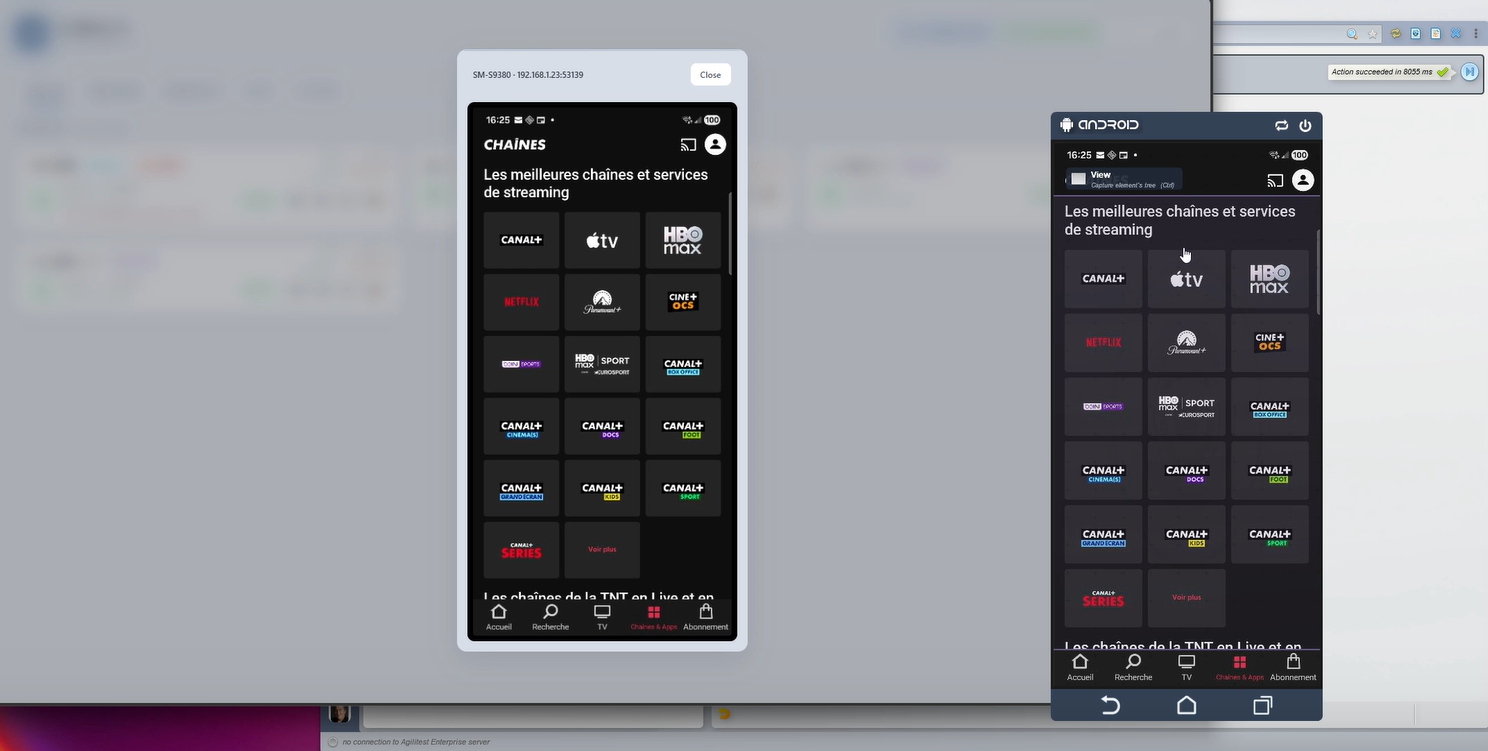
You can also view a screenshot of the screen directly from the interface for connected devices on Mobile Station.
Technical fondations: ATS-Core
The ATS-core engine ensures robustness behind the scenes:
- Dynamic Management: ats-core queries the stations to find an available device that meets the test criteria. If a device is already in use by another script, the engine can automatically switch to another available device.
- Script Abstraction: The test script remains agnostic to the phone’s unique identifier. It simply requests an app on a system (Android or iOS), and ats-core handles the “matching” at runtime.


