

Browser Providers
In Agilitest, integrations with Selenium Grid, Sauce Labs, and BrowserStack are called “Browser Providers.” They allow you to run web tests on remote infrastructure or in the cloud.
The main purpose of these integrations is to spare testers the trouble of having to install and maintain a multitude of browsers and operating systems locally.
They are used to:
- Ensure cross-environment compatibility: Test a web application on different versions of Chrome, Firefox, Edge, or Safari, and on various operating systems (Windows, Linux, macOS).
- Scalability: Execute large-scale test campaigns in parallel on infrastructure capable of handling the load, which significantly reduces the total execution time.
- Access the Cloud: With BrowserStack and Sauce Labs, you get instant access to thousands of browser/OS combinations that are automatically updated, without having to manage physical servers.
How to configure a browser provider
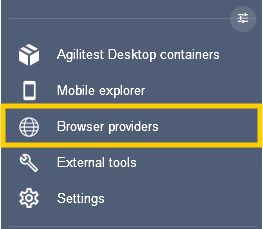
In the Agilitest sidebar, open the Browser Providers panel.
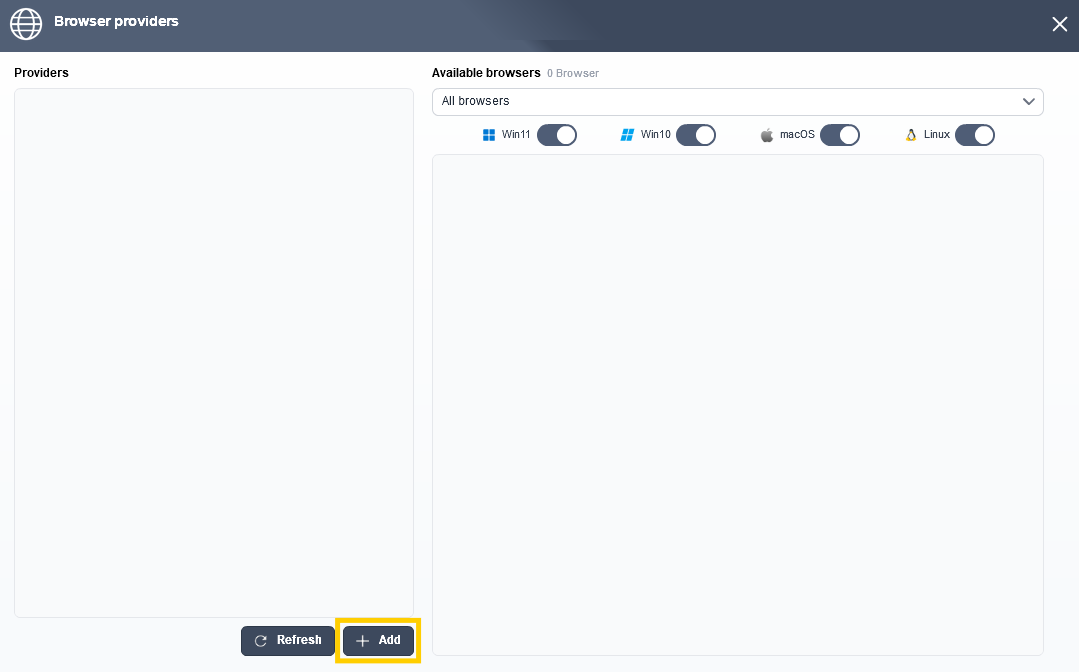
Add a supplier by entering their login information.
For Selenium Grid, you specify the hub's URL (ex: http://host:4444).
For BrowserStack and Sauce Labs, enter the cloud URL and your login credentials (username and accessKey).
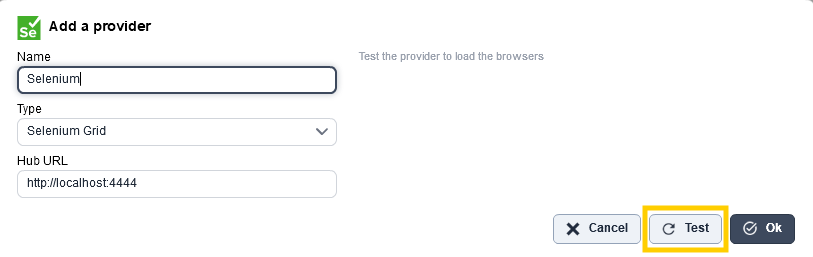
When you click “Test”, Agilitest queries the provider's API directly to instantly retrieve the list of available browsers and versions.
For each browser, you configure the desired version.
By default, the “Latest” option is selected.
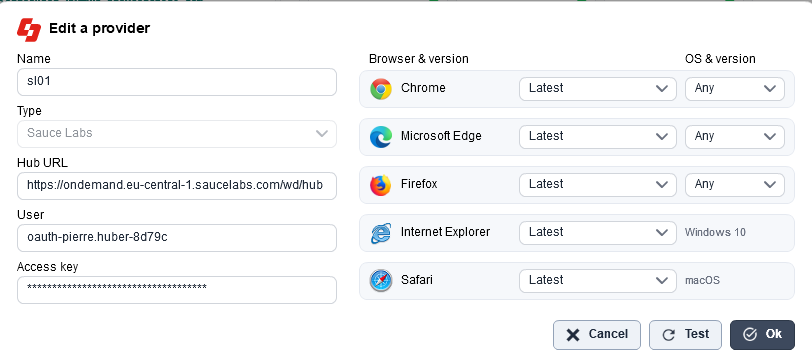
You can also choose “Latest beta” (cloud-based) or a specific release, as well as the target operating system. You can choose to execute the browser on Windows, macOS, or Linux, depending on what the provider offers.
Example :
You can add the same provider multiple times but with different release dates or different OS in order to test various cases.
Once configured, Agilitest saves this configuration in the .atsProjectProperties file located at the root of your project, in the form of an XML <browserProviders> block.
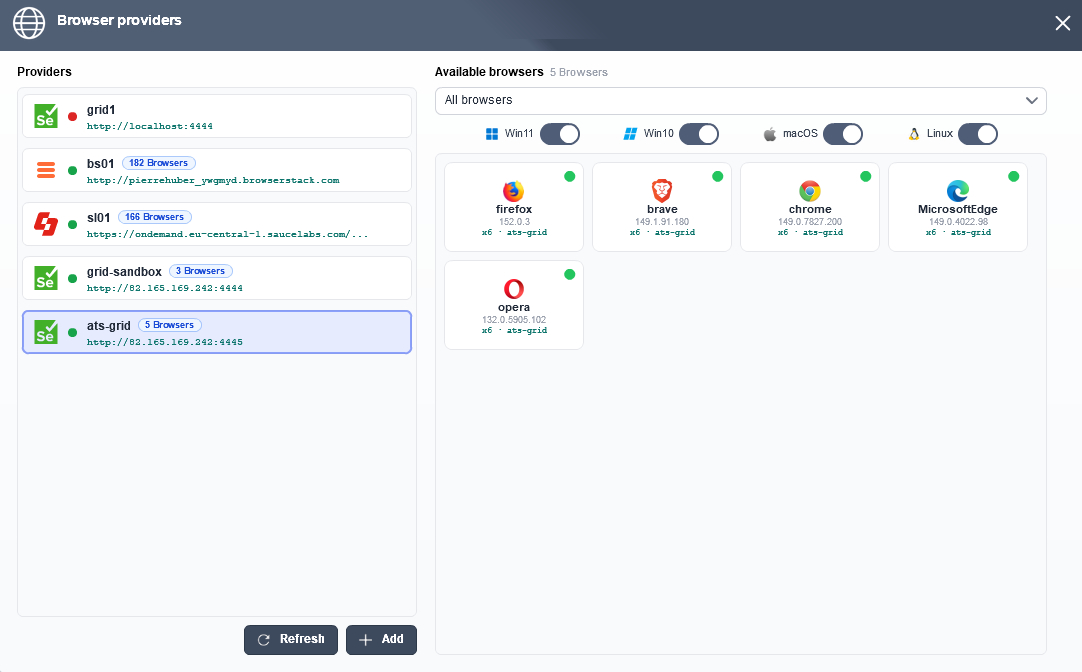
A green icon appears on the browsers to let you see at a glance which browsers are configured and ready to launch.
Use a provider in a test
Once your configuration is saved in your project, you don’t need to open the browser providers anymore.
You have 2 ways to execute your tests on these distant machines instead of your own computer:
- By script:
In your test script, in the action that launches the browser, add an option containing the name of your provider (ex: browser-provider=MonBrowserStack).
- Via the command line or launch button:
You can set this when the code is executed by passing the global option


