

AI Agent
Agilitest and AI
To facilitate the design and maintenance of your tests, Agilitest offers AI integration to improve the day-to-day work of test designers.
The key point is that the AI makes suggestions, and humans validate them.
The tester oversees the machine, filters out false positives, and retains full control over the test coverage.
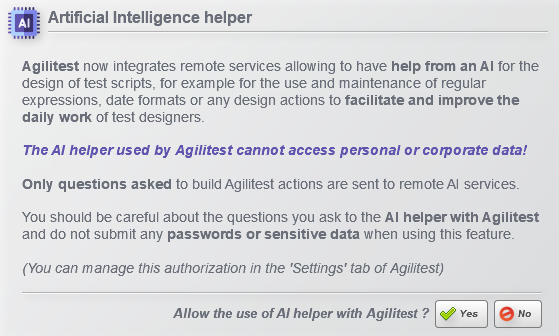
The first time you open Agilitest, or following an update, a window will open asking you to accept or reject the integration of artificial intelligence into Agilitest.
🔸 Warning
It is important to specify that the integration is not intrusive and has no access to your personal or company data.
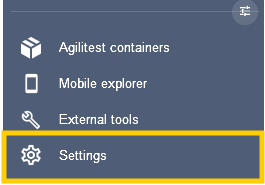
You can change this parameter in settings menu in the side bar.
AI Agent
Agilitest's AI agent is designed to interact with humans in real time using an “AI Interactive Loop” architecture. Artificial intelligence steps in to assist the tester where it provides real added value.
AI helps you explore the application and build reliable step-by-step scenarios without writing any code (no-code).
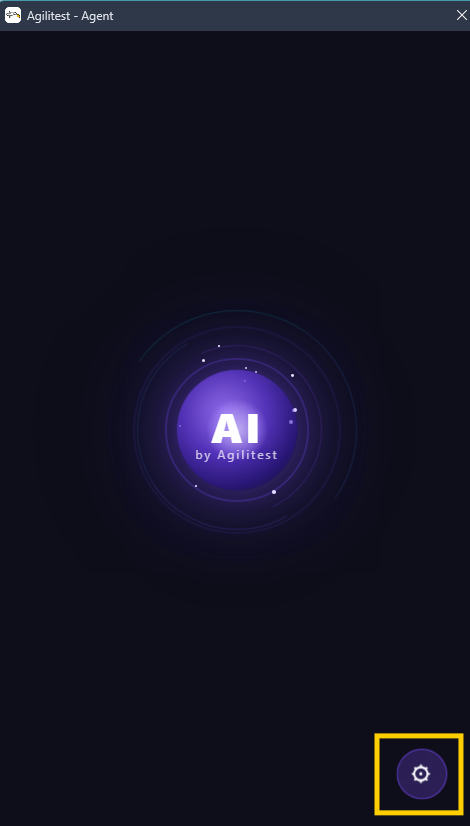
To configure your AI agent, go to the settings menu. There, you can decide if you allow the help of AI and if you want to open the AI agent window on startup.

You can configure your AI agent with your preferences by clicking on the settings button.
You can set up your provider, API key, languages, etc…
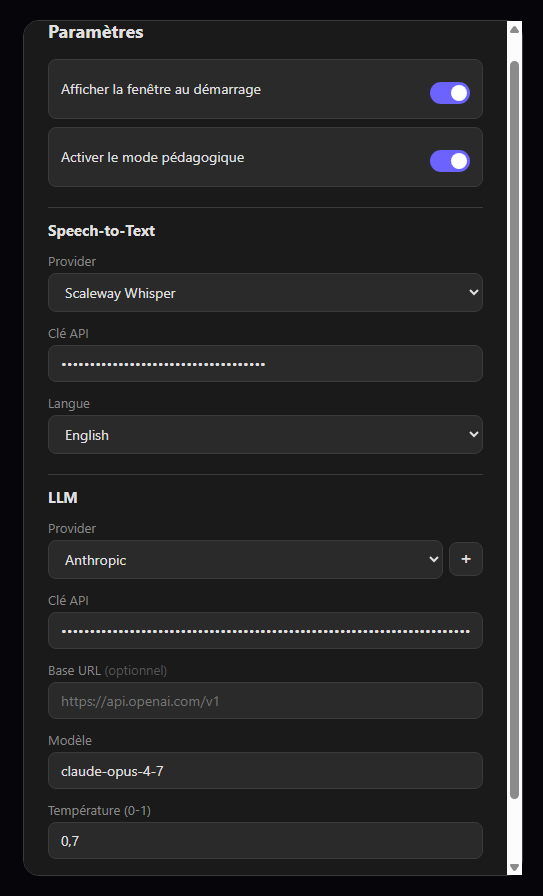
You can also choose to activate the pedagogical mode.
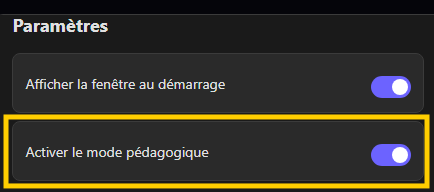
When this mode is enabled, every answer the AI produces is accompanied by a short, plain-language explanation of what each part of the result does and why.
Examples:
- For a regex: what each character class matches and why that quantifier was chosen
- For a date format: what each token means
- For a JavaScript condition: what the expression evaluates to and the alternatives that were considered.
The goal is to instruct and train the engineers who use Agilitest so that each interaction with the agent leaves them slightly more autonomous on regexes, date/time formats and JS expressions, instead of blindly copy-pasting an opaque answer.
This toggle is off by default so the regular output stays terse for power users.
Agilitest's stance on AI is that it should augment the test engineer, not replace them, the human stays in the loop, decides, and learns.
AI in variables
You can use AI to help you create variables.
To open the AI window, click on the "AI" button in your script variable.
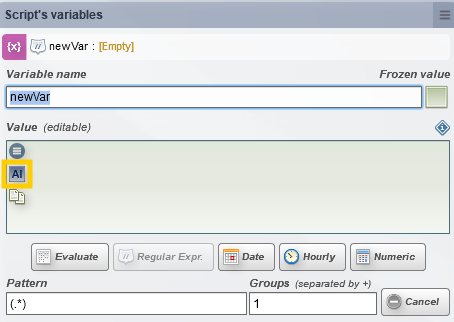
This will open the AI Agent window.
When asked to suggest a date or hour format and the source value clearly is not a date/time (random text, identifier, etc.), the agent now warns upfront in a yellow banner before producing any format suggestion.
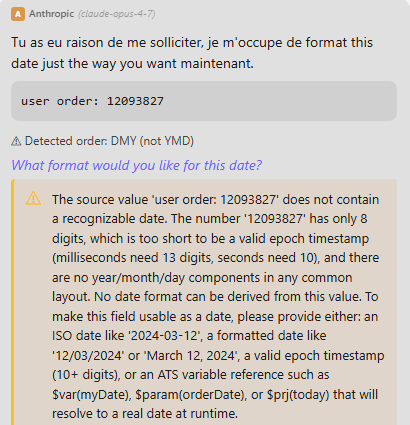
Variable references (e.g. $prj-MY_VAR) are detected and pass through unchanged
Example with a regular expression.
You have entered the value of your variable.
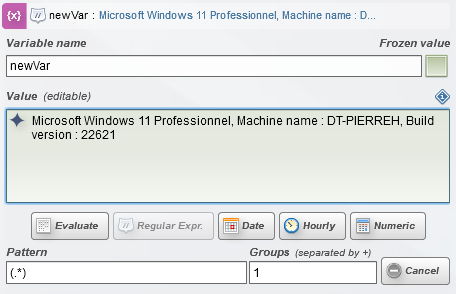
Click on the AI button to open the AI Agent
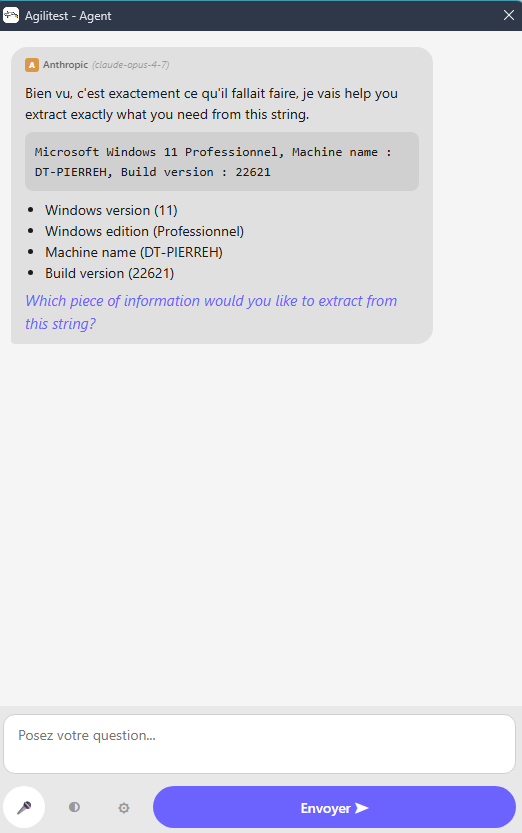
Enter the data you wish to extract from the value you entered.
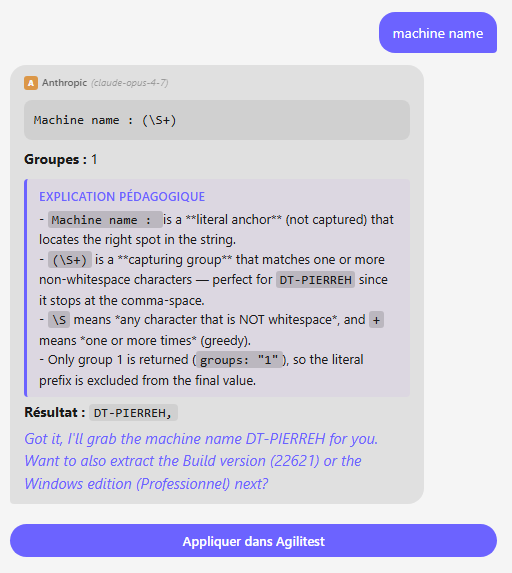
The AI will generate the regular expression you need to enter into Agilitest to extract the data. With the pedagogical mode activated, the AI also gives an explanation of the expression.
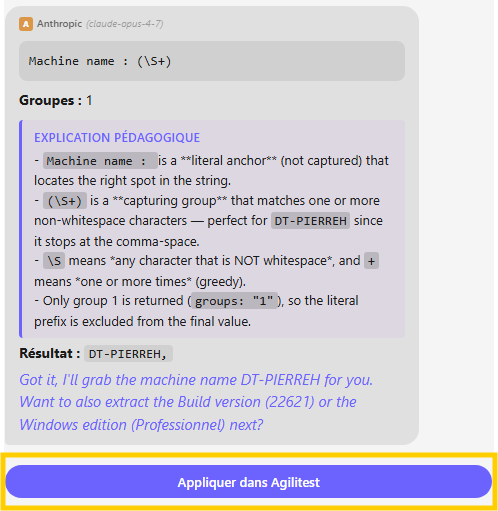
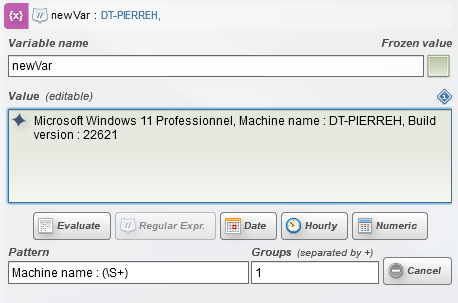
Click on “Apply in Agilitest” to send the result directly into the script.
🔸 Warning
Even if the integration of artificial intelligence is not intrusive, do not enter personal or company data in the AI search bar. The AI will not process information linked to your Agilitest licence, but it will process all the information you give it in a text input. Do not make it process your passwords, for example.
Self-Healing
Thanks to self-healing, the AI validates interactions before recording them and intelligently adapts to changes in the user interface (UI). It reduces the fragility of selectors, a major challenge given that maintenance can account for up to 75% of automation costs.
In the editor, check the case associated with AI healing.
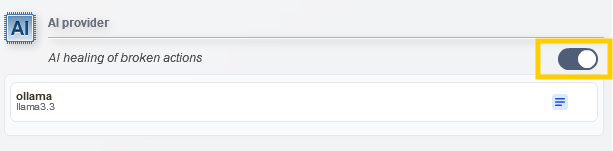
If you later delete your AI providers, Agilitest will automatically disable this mode to prevent a chain reaction of errors
Self-healing can be of great use in a situation where you have an ATS script with an action to click on a button on an application with a specific ID that does not correspond to the ID of the application.
This can happen when there is an upgrade made after you have created your script and the developers have changed an ID into another.
In classic execution mode, the test is broken, because the ID in the script does not correspond to the ID in the application anymore.
However, with the self-healing activated, the ATS execution pauses. It captures the HTML context and the exact DOM of the page at the moment of the freeze, and sends all of that to your AI provider along with a simple question: “Where did my button go?”
The AI analyzes the changes, finds the new selector, replays the action on the fly, and the test continues as if nothing had happened.
All changes made by the AI are visible in your execution report.
The AI's trace appears in plain text. You can see the old selector, the new one it suggested, and the “corrected” status.


