Web services
In your end-to-end functional tests, you can manage web service workflows directly within your Agilitest/ATS automated test scripts.
The goal is to allow you to control the data exchanged or even retrieve it for reuse in your automated tests for functional purposes.
The way web services work in Agilitest is designed to be as transparent as possible compared to testing graphical user interfaces (Web, Desktop, Mobile).
Open an API channel
Agilitest can open this channel in parallel with a web or mobile channel, which is very useful for verifying via API that an action performed on the graphical interface has indeed been recorded in the database.
To test an API, you can open an API channel in Agilitest..
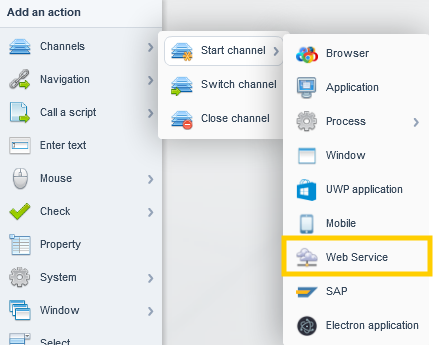
In the Agilitest interface, add an action "Start channel" and select Web Service.
Capture mode is automatically activated for this result.
You don't need to code a complex JSON or XML parser: you can visually click on the values, keys, or tags in the response displayed in the window.
Agilitest’s targeting system (Locator) then generates the path to that data. You can drag and drop this element from the capture window directly into your script editor to create an action
Once the channel is open, you will use action keywords specific to HTTP requests. ATS natively supports the main methods for REST APIs (JSON format) and SOAP (XML format).
Note: You can configure default endpoints in the .atsProjectProperties configuration file.
Use the Navigation action to target the specific endpoint (SOAP or REST).
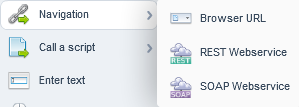
Select the address (URL) of your web service and configure HTTP authentication if the API requires it.

If it's a REST service, you can specify the HTTP method (GET, POST, PUT, DELETE...), add headers, and define the body of your request

💡 Tip
If your Web Service requires a secure client certificate to connect to it, Agilitest supports certificates in .pfx format. Simply place them in the assets/certs folder of your project, and the editor and Web Service window will automatically use them.
Agilitest Web Services window
In Agilitest, the window dedicated to Web Services (the built-in viewer) allows you to test APIs (SOAP or REST) graphically, just as you would for a traditional user interface (Web or desktop).
Open the Agilitest Web Services window from the project explorer > Webservices
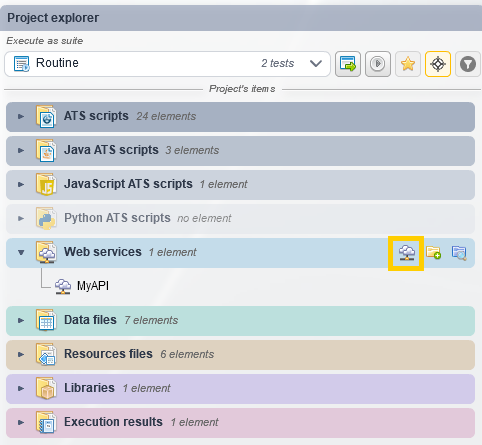
You can create a new Web service or open an existing one.
You can also access the Agilitest Web Services window from the editor's sidebar.
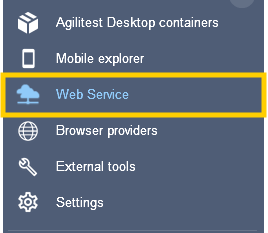
.
Select the navigation action and choose the request type (GET, POST, PUT, PATCH, DELETE).
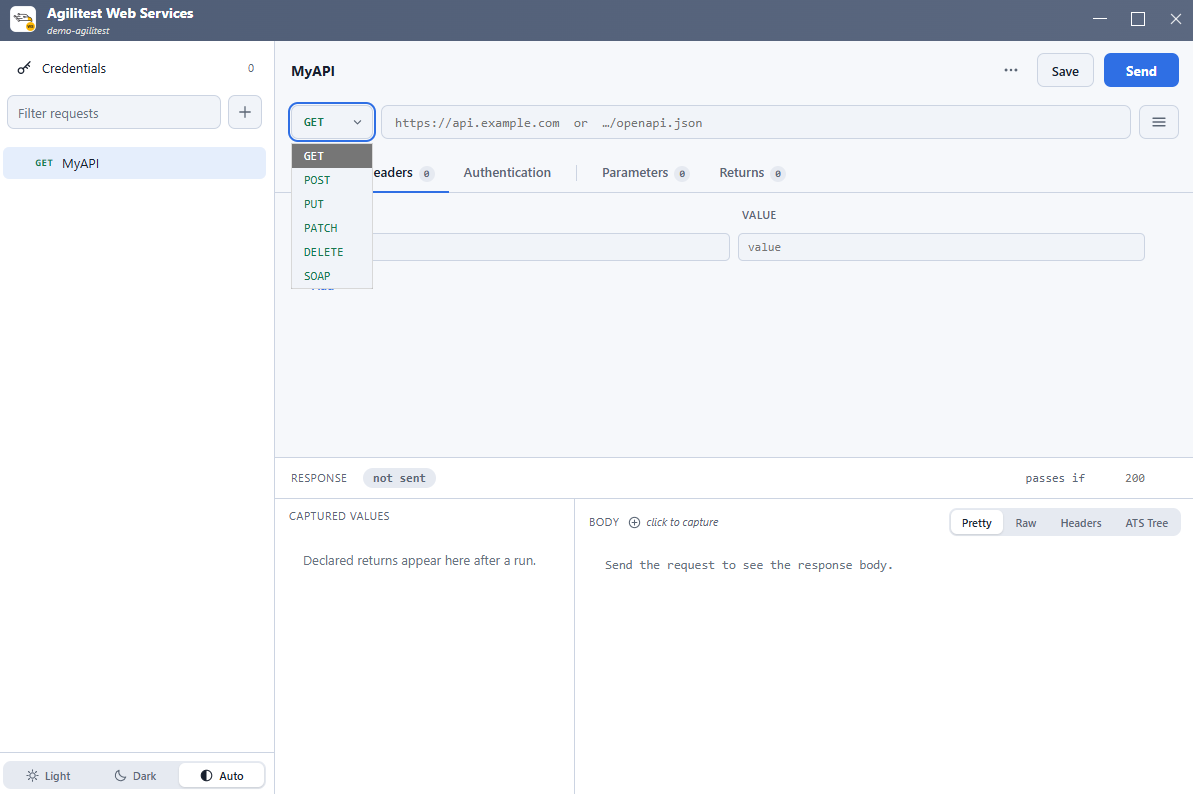
You can define the headers (HTTP headers) and the request body (Body or Payload) by inserting variables as needed.
In the Request section, you will build the API call you want to make:
- The HTTP method: A drop-down menu allows you to select the action to perform (GET, POST, PUT, DELETE, PATCH, etc.)
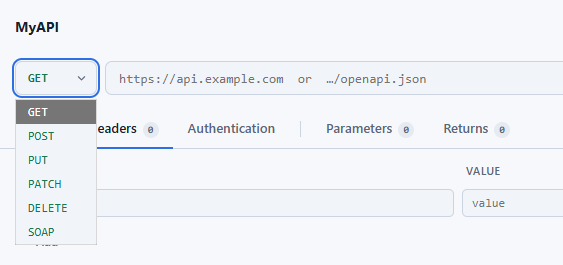
- The Endpoint (Path): You can append to the URL.
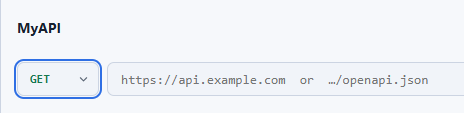
For example, if your channel is open at [https://api.site.com](https://api.site.com), you can add /users/1 here.
- Headers: Very important for authentication or specifying the data type. You can add your keys here (e.g., Authorization: Bearer xyz... or Content-Type: application/json).

- The Body (Request Body): If you're using a POST or PUT request, a text field allows you to paste your payload (typically in JSON or XML). You can include Agilitest variables in it (e.g., {“name”: “$var(username)”}).
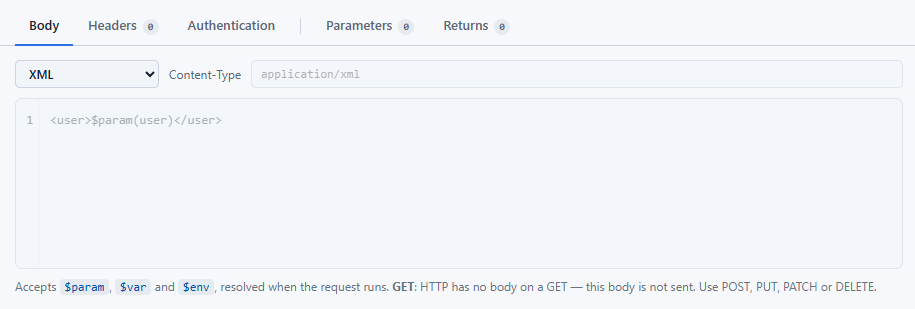
Once configured, click the “Send/Run” button in this window. Agilitest will send the request and display the response immediately.
Once the request is sent, the Response section is populated with:
- The status code (e.g., 200 OK, 404 Not Found).
- The response headers.
- The response body (JSON or XML is formatted and displayed as an interactive tree).
ATS interprets the JSON or XML tree structure exactly like the DOM (HTML) of a web page.
Check (check-property): You can graphically select a JSON key to check its value.
Example:
Verify that the “status” field is equal to 200 or that the “name” field matches the expected user.
Extraction (property-get): You can retrieve an element from the response (such as a login token or a generated ID) and store it in a variable $var(myToken) to reuse it in the next step of your workflow.
Wizdler plugin
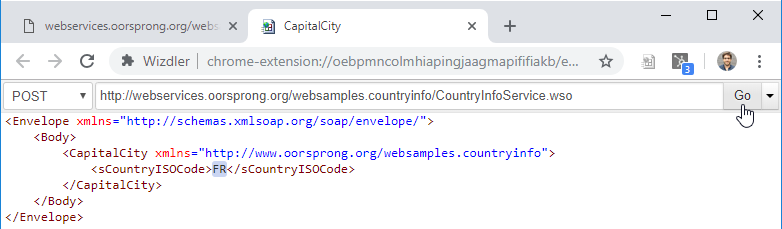
If you're not familiar with the Web service body, here's a simple tip to help you analyze WSDL files and generate SOAP messages:
- Install the WIZDLER plugin on your web browser (Chrome, for example: Link to the Wizdler plugin here)
- Open the http Web service link on the same browser
- Click on the dedicated Wizdler
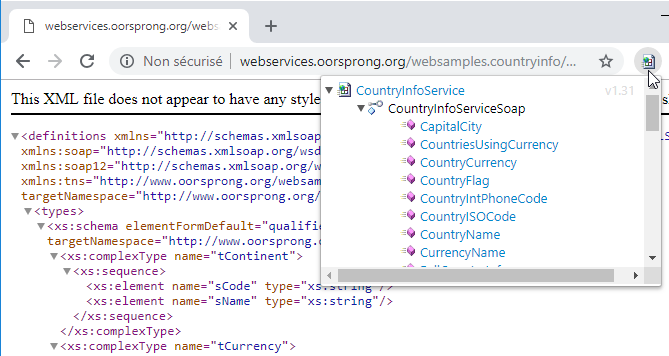
- Click on one of the available actions on this service website (for example, CapitalCity) to retrieve the body
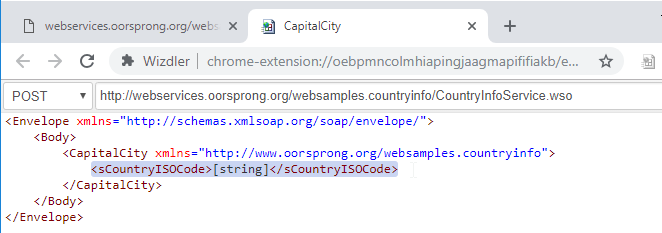
Paste it on the "API data" part.
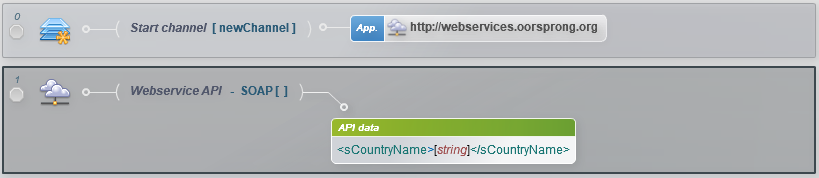
- Be sure to specify the related action in the “method” field of the Agilitest action
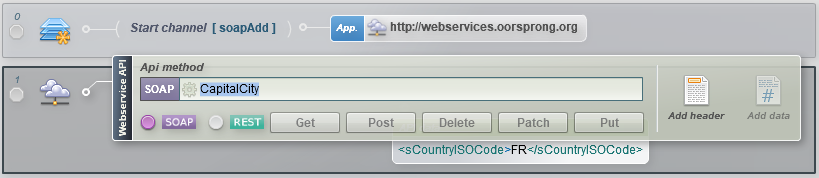
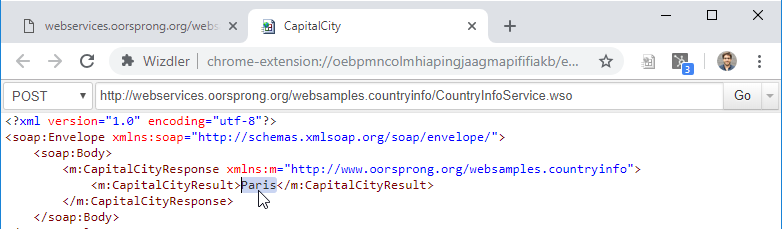
- You can even test the action by replacing the default data [string], then clicking the “Go” button and checking the result returned by the Web Service function